So a lot of modern text boxes that support formatting have two paste shortcuts, with the default ctrl+v being paste with formatting and ctrl+shift+v pasting with plaintext (no color, formatting, font matches destination rather than origin).
However Microsoft Office PowerPoint is dumb and stupid (at least my version is, which is on version 2403). There isn’t a shortcut for pasting plaintext. And there doesn’t seem to be a convenient way to set up that shortcut in-app.

So I did some Googling and found a solution and wanted to share. It involves Windows PowerToys, a nifty program that let’s you customize a lot of stuff that can’t be messed with in the base Windows operating system. I recommend downloading it regardless because of how useful it is.
You can get it from the GitHub repository or the Microsoft app page.
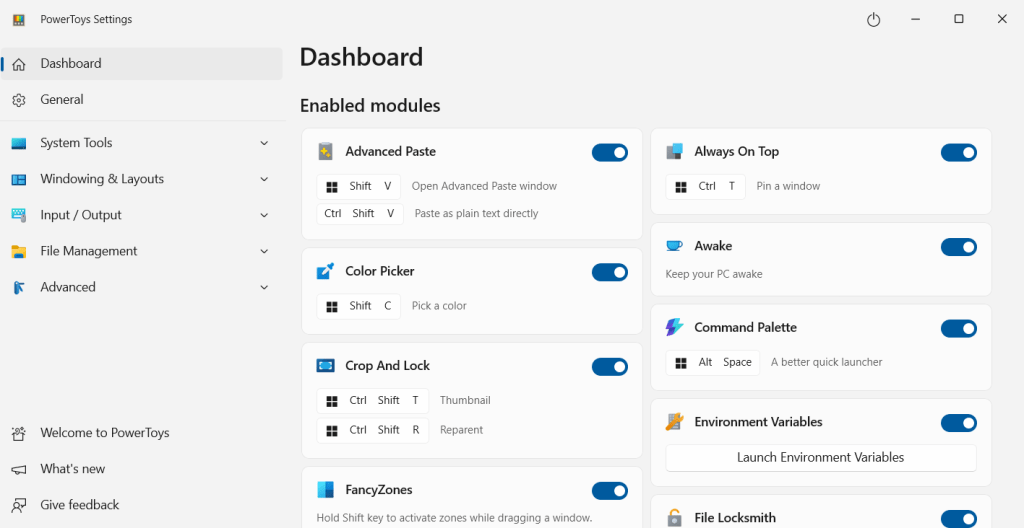
After downloading it, be sure to enable Advanced Paste and select it. If you don’t see it, go to System Tools on the left handside and it should be in the drop down there.

Once you’re in this page, scroll down to the part that says Paste as plain text directly and change the shortcut to whatever you want. You can see above I just have it set to ctrl+shift+v already.
And ta-da!
You can now paste as plain text with ctrl+shift+v in PowerPoint. This will continue to work as long as PowerToys is running in the background. You can disable it by hitting the little power button at the top right corner of the window. Just clicking the x button only closes the window but it will still keep running in the background so you can keep the effects of PowerToys in effect without it cluttering up your screen. You can always check your hidden icons to see if PowerToys is running or not.

And that’s all!
 Binder Clip Scorpion
Leave a comment